 Windows Products


 Mac Products
 Cross-platform transfer solution for all smartphone users to transfer content between Android and iOS, transfer data from iTunes, iCloud, iTunes library to mobile phone.
 > How-To > 3 Ways to Remove Unused Apps from iPhone
3 Ways to Remove Unused Apps from iPhone
We often end up with apps on our iPhones that we no longer use or need. These unused apps take a lot of space on our phones, especially when we’re dealing with games that usually take up several hundred MBs or even multiple GBs at times.
Thankfully, it's easier than ever to clean out the Apple smartphone for all the other apps. Here we'll walk you through the 3 methods to remove unused apps from iPhone. Keep on reading to find out how you can permanently delete apps on iPhone.
 Method 1: Remove Apps on iPhone from Home Screen
Deleting apps on iPhone is a really simple process. In order to remove apps or games from your iOS device, all you need is one finger — any finger — and some patience. Here’s how to uninstall apps or games on your iPhone in just a few seconds.
Step 1: Navigate to the home screen that displays the icon for the app or game you want to delete.
Step 2: Tap and hold down on the icon, i.e. use your finger to press and hold the app icon instead of quickly tapping normally.
Step 3: The app icons on all your home screens will start wiggling or shaking.
Step 4: Tap on the little ‘x’ on the top left of the icon that you want to delete or remove.
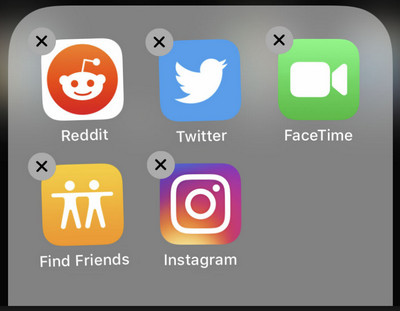
Step 5: Do this for all the apps and games you want to remove from your iPhone.
Step 6: When you’re done, depending on which generation of iPhone you have, either press the home button or press the ‘Done’ button at the top right of the screen.
Method 2: Remove Unused Apps on iOS Devices with iPhone Manager
PanFone Manager is the best alternative to iTunes. Apart from offering the solutions to transfer data, including music, photos, videos, contacts, apps and more between computer and iOS/Android, it also works as the iOS management tool to back up, import or delete apps with ease.
Download
Win Version
Download
Mac Version
Now, let's check out the tutorial on how to remove unwanted apps on iPhone with PanFone Manager.
Step 1: Install and run PanFone Manager on your computer and connect your iOS device to it via a USB cable.
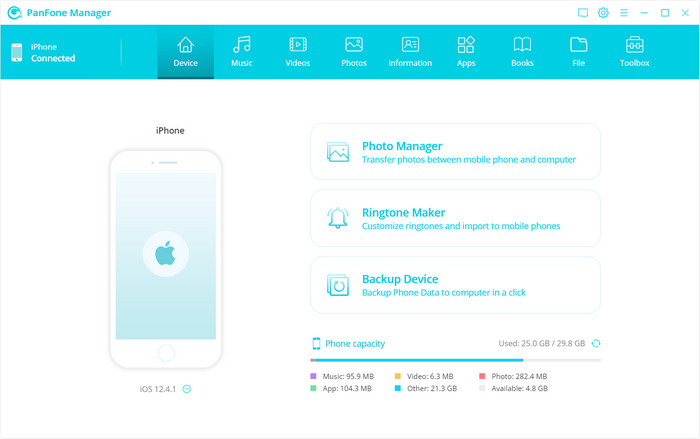
Step 2: Navigate to the Apps option from the top menu bar, then PanFone Manager will take a few seconds to load Apps on your iPhone.
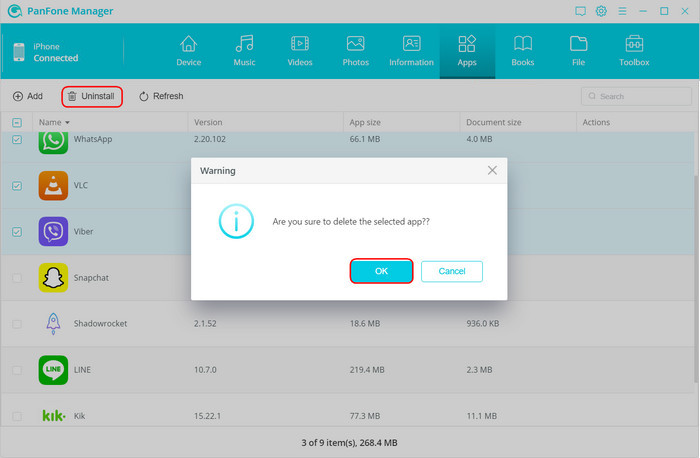
Select the one or multiple apps you do not need any more and click on the "uninstall" button to uninstall iPhone Apps in bulk.
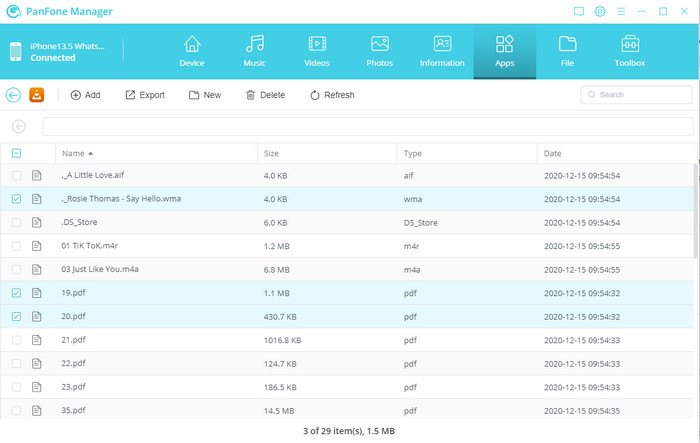
Tips: If the App supports sharing documents, you can click the "Folder" icon when the cursor moves over it. The "Document Share" panel will be open. You can preview files attached in the application and export them to the computer for a backup.
Method 3: Delete Apps on iPhone with iOS Data Eraser
If you have two many applications take up the storage on your iPhone, you can use PanFone iOS Eraser to bulk delete unwanted Apps so as to free up iPhone space. If you are going to sell or donate your iPhone, it is also perfect to use PanFone iOS Eraser to wipe all data to make them irrecoverable by any means.
Here are the steps to delete unwanted apps on iPhone with PanFone iOS Eraser.
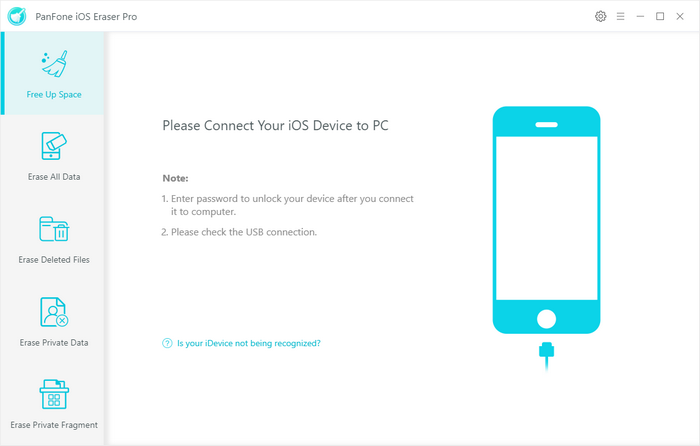
Step 1 : Launch the iOS Data Eraser on your computer and connect your iPhone with the computer via a USB cable.
Step 2 : Click on the "Free Up Space" tab on the top left panel of the home screen, and there are 6 categories "Junk files", "Temp Files", "Camera Roll", "Photo Library", "Large Files", "Apps". Simply click on the "Apps" option on the middle panel.
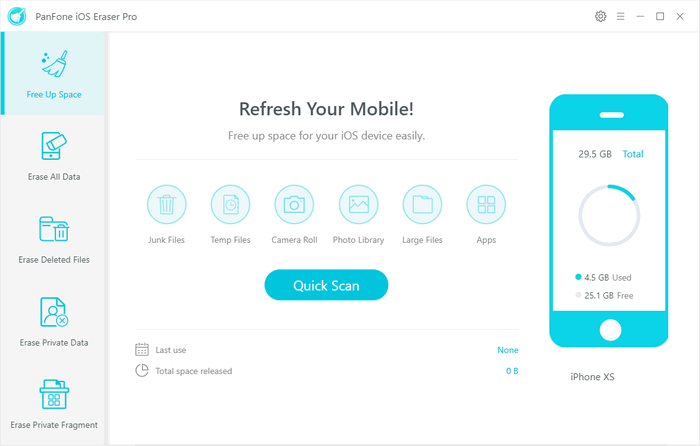
For the first time, the scan will take a few seconds. When the scan process is completed, you will see a result list of scan. It lists all the apps installed on this iPhone.
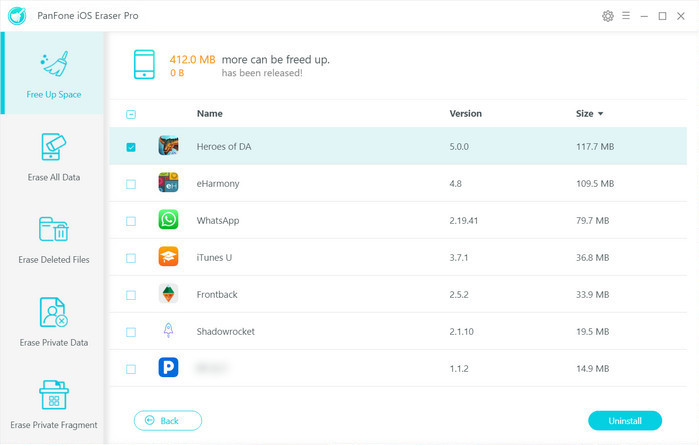
Step 3 : Choose the apps you do not want to have any more by checking the check-box in front of them. Click on the "Uninstall" button.
These are some of the methods which can help us with how to remove Apps on iPhone permanently. By comparison, PanFone Manager can be the best choice to delete apps on iPhone. And you can use it to manage your iPhone data better.
Download
Win Version
Download
Mac Version